
Desktop media workbench · Windows 10+ · macOS · Linux
Capture, convert, edit.
One desktop workbench.
For creators, teams, and archivists who need to keep, convert, and reuse media they own or are authorized to use, without switching between several apps.
ClipHearth takes screenshots, records your screen, your microphone, and your camera, and goes live to Twitch, YouTube, and Kick at once. It saves the video and sound playing on a page, then cuts, captions, converts, and subtitles right on your computer, all in one app.
v1.11.0 (installer 1.9.0, updates on first start) · free to try: 3 tasks per device, no card, no account · all builds ↓
For media you own or are authorized to keep. ClipHearth does not circumvent DRM.
- Capture
- Screen · game · camera · screenshots · what a page plays
- Edit
- Studio · clips and photos · layers · edit by text · captions
- Convert
- 12 video · 9 audio formats · AI subtitles in 50 languages
- Share
- Shared box between your computers, end to end
- Platforms
- Windows 10+ · macOS 12+ · Linux · 3 free tasks to try
Take the tour. Click around.
A clickable replica of ClipHearth 1.11.0, running right in this page, with the same layout, states, and flow as the desktop app. Download the video from a sample page or record the live radio, then convert it, put clips and photos together in the Studio, or add AI subtitles.
What are we making today?
Simulated in your browser: nothing is downloaded, uploaded, or counted against your trial. The real work happens in the desktop app, on your machine.
The real app · screenshots from macOS
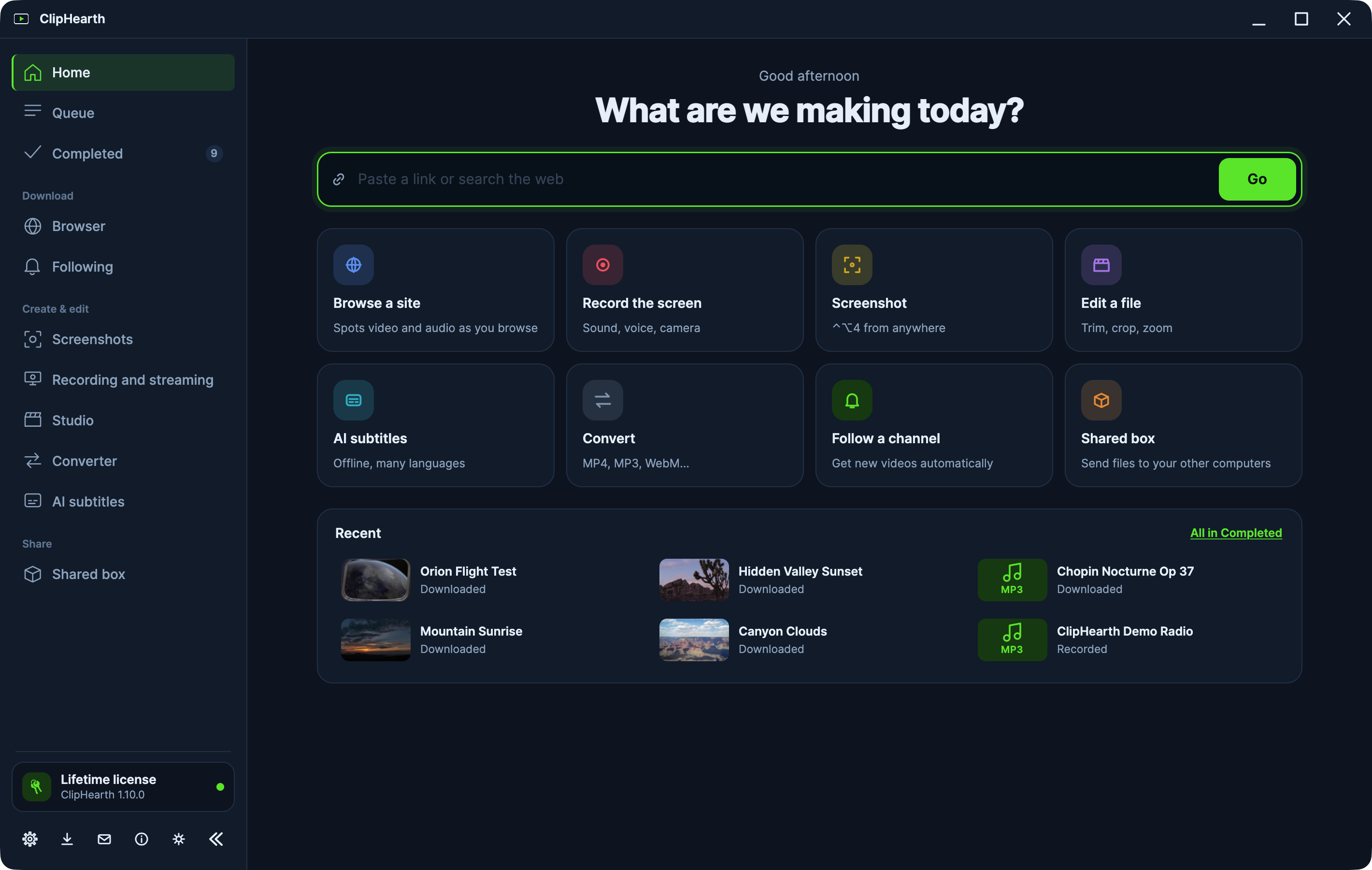
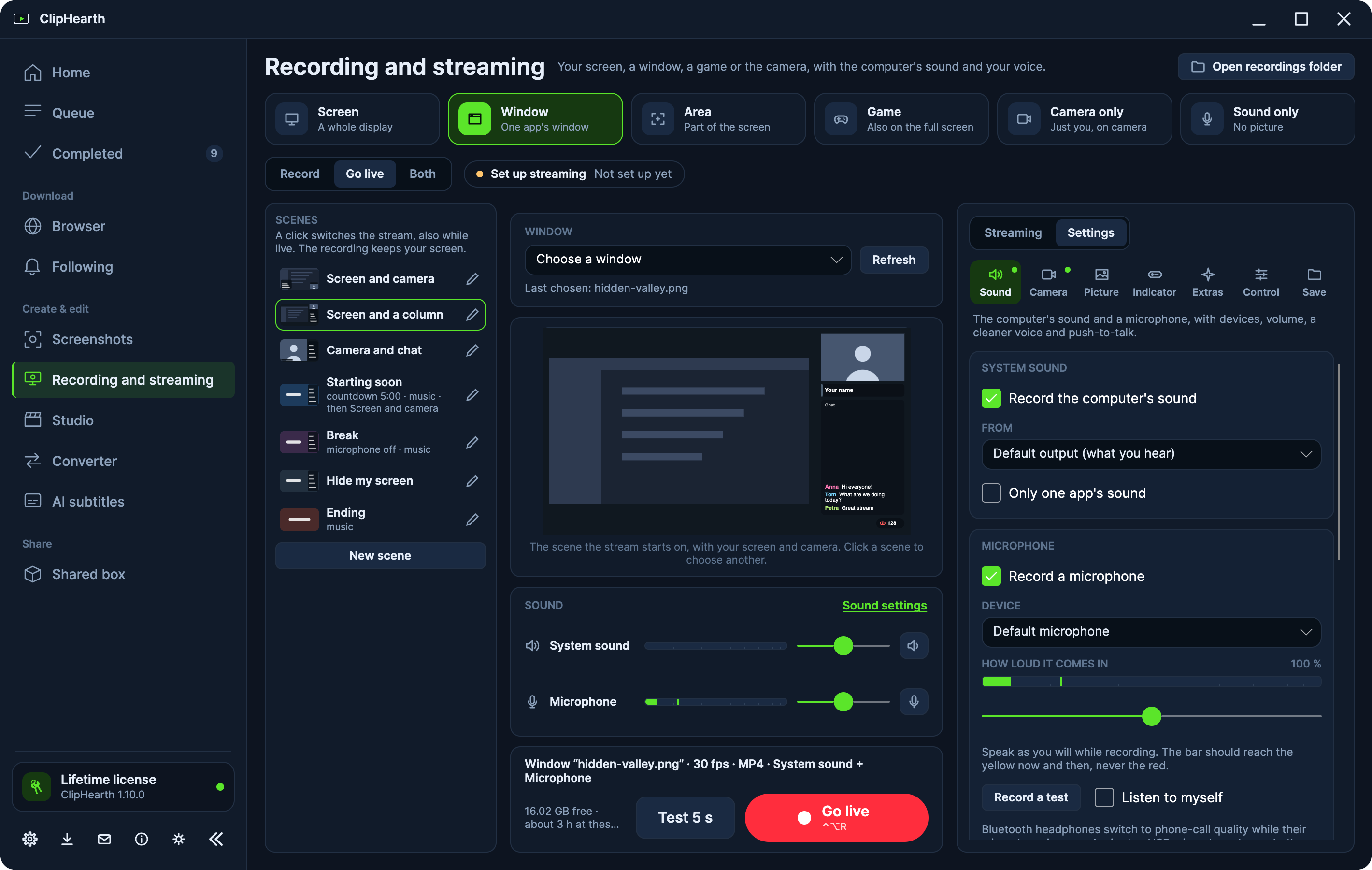
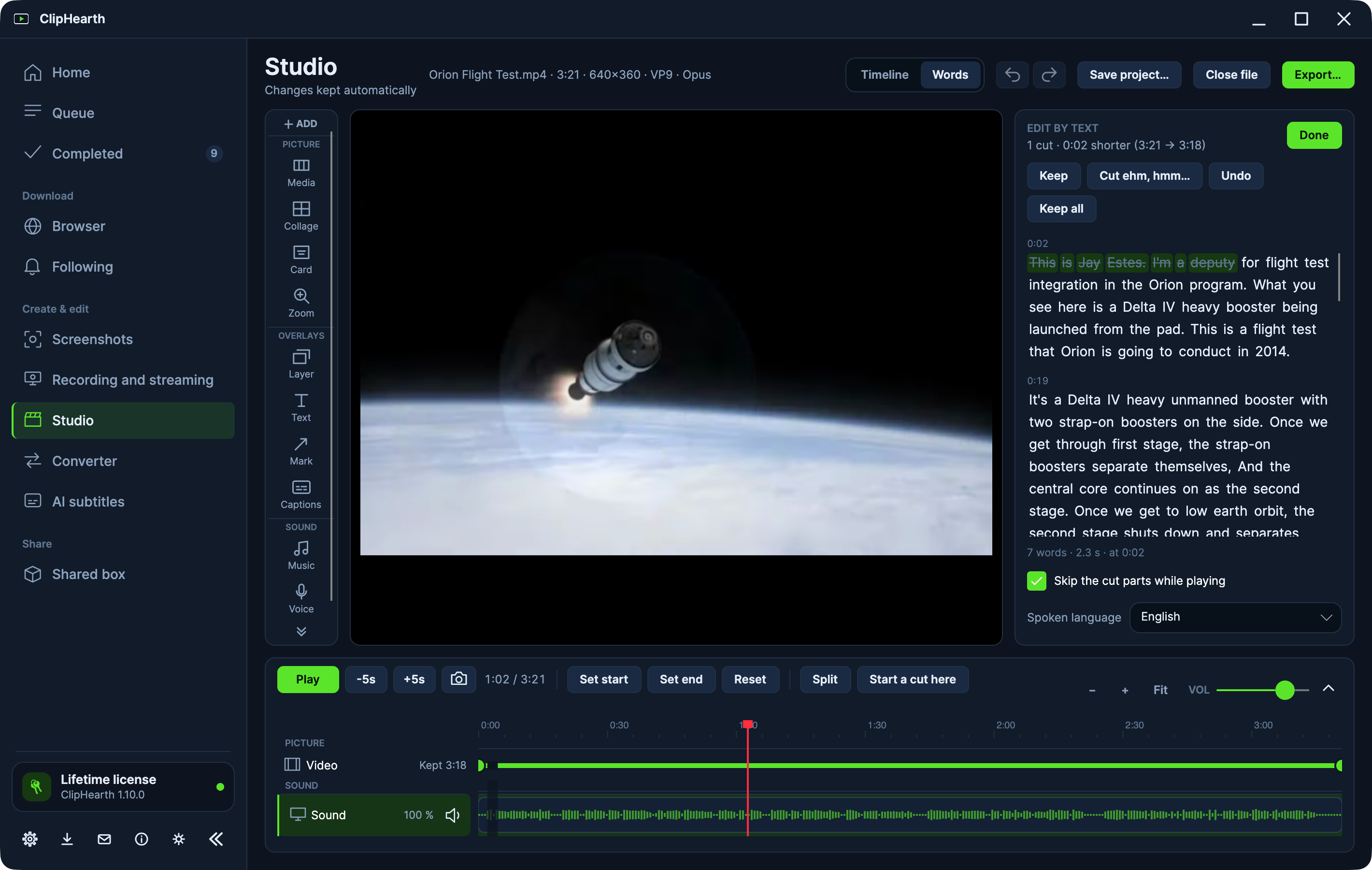
More screenshots, in full size, in the press kit.
Get ClipHearth 1.11.0. Try it free.
Every download runs in trial mode: 3 tasks per device, no card, no account. Screenshots, and screen recordings or streams up to 3 minutes, stay free for good. Pick a lifetime license or a monthly plan only if you want to keep going. The installers below are 1.9.0 and update to 1.11.0 on first start, after checking the publisher's signature.
Windows
Windows 10 or later
macOS
macOS 12 or later · Apple Silicon or Intel · signed and notarized by Apple
Linux
x64 or arm64 · .deb or tar.gz
What's new in 1.11.0update2026-11-12
- AI images is a new section. It makes pictures on your computer from a description, or changes a picture as you describe. What you type and the pictures are never sent anywhere; only the model is downloaded, once.
- Choose among open models, from quick ones that take a few seconds on a good graphics card to large ones for the strongest cards. ClipHearth says before any work which of them this computer runs and recommends one.
- While a picture is made you see each step with its time, and the processor, the memory, the graphics card and its temperature as graphs. Free the memory takes the model out of the memory when you are done.
1.10.02026-11-10
- Stream to Kick, Facebook, Instagram, X, LinkedIn, Rumble, Telegram, Restream, Steam, Vimeo and more.
- Each scene has a layout: the screen with your camera, the screen with a column for the camera and the chat, the camera with the chat, the camera alone or the screen alone. Pick one from pictures.
ClipHearth updates itself: 31 public releases since the launch on 21 September 2026.
Full release history →Before you install
- FFmpeg and the media engine ship inside every build.
- The Windows installer installs ClipHearth for your account only, so it never asks for an administrator; it adds the Microsoft WebView2 runtime if it's missing, so keep the connection on during setup. If an earlier version was installed for everyone on the computer, Windows asks once to remove it.
- Debian, Ubuntu, Mint:
sudo apt install ./cliphearth_1.9.0_amd64.debinstalls what the app needs and adds the ClipHearth repository, so updates arrive through your system's own software updates. - Other Linux: unpack the archive and run
./install.sh; it lists the packages your distribution still needs. Full install guide - macOS builds are signed with a Developer ID and notarized by Apple, so they open straight away. Not sure which Mac you have? Apple menu → About This Mac; "Apple M…" means Apple Silicon.
- Free browser extension for Chrome, Edge, and Firefox: send the page you are on to ClipHearth in one click. Get the extension
- Checksums for every file: SHA256SUMS.txt
Windows installers are signed through Microsoft Trusted Signing, macOS builds with an Apple Developer ID and notarized by Apple, and the Debian package comes from our signed repository. Updates install only when they carry our signature, and every file has a published checksum.
The app carries no analytics or telemetry. It contacts our servers to record the terms you accept, to check your license or count your free tasks, and to look for and download updates, and, when you use them, to fetch an AI model you choose, to run a shared box, to connect Kick and pass on its chat while you stream, or to send a message from Contact us. Diagnostics logging stays off until support asks for it.
Recording, editing, converting and AI all run on your computer, and there is no cloud processing to turn on. What you stream goes straight to the services you pick, and a shared box is encrypted end to end. The built-in browser blocks the ads and trackers around a page before they load and hides cookie prompts.
No toolbars, no bundled offers, no ads inside the app. Conversions and edits are always written as a new file, so your originals stay as they were.
How ClipHearth works
- 01
Capture
Record the screen, a window, or a game with your microphone and your camera, or take a screenshot of an area, a window, or a whole scrolling page with one key. In the built-in browser, the detector finds the video or sound a page plays, live streams and radio included.
recording · screenshot · video found - 02
Go live
Stream to Twitch, YouTube, Kick, and your own server at once, upright too, with scenes, the chat, and alerts on the picture. Both streams and keeps the recording for the Studio.
live · recording kept - 03
Edit in the Studio
Put clips, photos, and sound on one timeline with transitions, layers, and captions, and cut by striking out words. Your edits are saved as you work, and every export is a new file.
exported as new file - 04
Convert
Turn anything into one of 12 video and 9 audio formats, in batches, under a file size you set, or from a watched folder. Add subtitles from speech or translate them, on your computer and only if you want to.
conversion complete - 05
Share
Put the result in a shared box and it shows up on your other computer or a friend's, directly or through a relay server, encrypted end to end. Every computer in the box needs a license.
in the box
Built like an instrument, not a widget.
Every capability below ships in the app today, and most of them are in the interactive demo above. Nothing on this list is aspirational.
- Performance
- FFmpeg ships inside. Conversions, exports, and burned-in subtitles use the graphics card when they can, and downloads run side by side and can be paused and resumed while the app is open.
- Updates
- Updates install only with the publisher's signature, without an administrator on Windows and through the system's own updates on Debian, Ubuntu, and Mint.
Screen recording
Record a display, a window, an area, or a game with your microphone, the computer's or one app's sound, and your camera in a corner. Instant replay, chapters, and free up to 3 minutes.
More about the screen recorder →Live streaming
Go live to Twitch, YouTube, Kick, your own server, and more, several at once and upright too. Scenes, alerts, and live captions; picture and sound go straight to the services you pick.
More about live streaming →Studio
Clips, photos, and sound on one timeline: 31 transitions, collages, titles, up to four layers with keyframes, edit by text, and captions. Saved as you work, the originals untouched.
More about the Studio video editor →Screenshots
An area, a window, the screen, or a long scrolling page with one key. Mark it up, copy the text, cover private details, or pin it. Screenshots never count as a trial task.
More about the screenshot tool →Converter
12 video and 9 audio formats in batches, with presets, under a file size you set, or from a watched folder. Lossless and near instant when only the container changes.
More about the video converter →Subtitles and transcript
Subtitles from speech in 50 languages, translated into 16, with a summary, chapters, and clip ideas, all made on your computer, and a search through what your videos say. Optional and included in the license.
More about subtitles and transcripts →Shared box
Send texts, pictures, and files between your computers, directly or through a relay, encrypted end to end so not even our server can read them. Every computer needs a license.
More about the shared box →Built-in browser
A browser with tabs whose detector finds the video and sound a page plays, records live streams and radio, queues playlists, follows podcasts, and blocks ads and trackers. For media you may keep.
More about the built-in browser →
Pricing
Lifetime license
€ 39one-time · no expiry
- ClipHearth for Windows, macOS, and Linux
- Recording and streaming, browser capture, Converter, Studio, Following, and shared boxes, plus optional AI subtitles and live captions
- Signed automatic updates
- Up to 30 days or 40 tasks offline between license checks
- Key delivered instantly, on screen and by e-mail
- 1 computer, add more for € 12 each, up to 10
14-day money-back guarantee · Refund policy
Monthly subscription
€ 9per month · cancel any time
- ClipHearth for Windows, macOS, and Linux
- Recording and streaming, browser capture, Converter, Studio, Following, and shared boxes, plus optional AI subtitles and live captions
- Signed automatic updates
- Up to 7 days or 15 tasks offline between license checks
- Renews automatically through Stripe
- 1 computer
Cancel any time from your receipt · Refund policy
Frequently asked questions
Step-by-step guides live in Help: installing, fixing a failed download, activating a licence.
Is downloading with ClipHearth legal?
ClipHearth is for media you own, created yourself, are authorized to use, or may lawfully process. That's the agreement you accept on first run. The app does not circumvent DRM, and protected content is not supported.
Can I try it before buying?
Yes. The app runs in trial mode with 3 free tasks per device, enough to test a download, a conversion, and an edit. Screenshots, screen recordings and live streams up to 3 minutes, and Test 5 s never count as a task. A longer recording takes one task the moment it passes 3 minutes, a download from Following is one task, and a shared box needs a license on every computer. When the third one is used up, the next click opens an offer to buy a license or to enter a key you already have, and the task carries on the moment the key is activated.
Which platforms are supported?
Windows 10 and later (64-bit and 32-bit installers), macOS 12 and later (Apple Silicon and Intel), and Linux on x64 and arm64: a .deb for Debian, Ubuntu, and Mint that updates through apt, and a tar.gz with an install script for other distributions. FFmpeg and the media engine are bundled in every build. AI subtitles need a 64-bit system; on x64 the processor needs AVX2 (Intel from 2013, AMD from 2015), and the 32-bit Windows build does not include them.
Which languages does ClipHearth speak?
The app speaks English, Czech, German, French, Spanish, Brazilian Portuguese, Italian, and Polish. It starts in your system's language when it has it, otherwise in English; pick another one when ClipHearth starts for the first time or later in Settings. This website, the Terms, the Privacy Policy, and the license texts are in English. The language you choose is not sent anywhere.
How does the license work?
Pick a lifetime license (one payment, no expiry, 14-day money-back guarantee) or a monthly subscription (cancel any time). Your key shows up on the confirmation page and by e-mail right after checkout and activates the app on one computer. The app confirms the license with our server while you use it; without a connection a lifetime license keeps working for up to 30 days (40 tasks) and a subscription for up to 7 days (15 tasks). A subscription keeps working until the paid-through date, even after you cancel.
Can I use ClipHearth on more than one computer?
Yes, with a lifetime license. A license covers one computer, and you can add more to the same license for € 12 each, up to 10 computers in total: open cliphearth.com/add-computers with your key. On each extra computer you enter the same key, and the computers can be used by your household or a small team. Every computer in a shared box needs a license: each one is one of your license's computers or has its own license. Extra computers can be refunded within 14 days, as the Refund Policy explains. A monthly subscription covers one computer.
What if I reinstall ClipHearth or change computer?
Reinstalling ClipHearth, or losing its license file, keeps your license: the app recognises the computer and gets the license back on its own, without the key. A fresh install of the operating system, a different user account or a new computer counts as a new computer, so the old one has to be released first - write to info@cliphearth.com from the address you bought with and we will do it.
Can I switch from monthly to lifetime?
Yes, from the app: License → Upgrade to lifetime, or open cliphearth.com/upgrade and paste your key. You pay the normal lifetime price once. The lifetime license starts when the period you have already paid for ends. Those days are not refunded, and nothing is charged again after that. We cancel the monthly charge for you and your activation key stays the same. Change your mind within 14 days? The refund deactivates the lifetime license, and we e-mail you a new key for the subscription days you had not used yet.
Who is the seller, and are taxes included?
Payments run through Stripe, and Stripe's Link is the merchant of record: VAT or sales tax is handled at checkout, receipts and invoices come from Link, and refund or payment questions go through Link support or info@cliphearth.com. Prices are shown in EUR with tax included; Stripe converts them to your local currency at checkout.
What formats can it produce?
Video: MP4, MKV, MOV, WebM, AVI, M4V, WMV, FLV, MPEG, 3GP, OGV, and animated GIF. Audio: MP3, WAV, M4A/AAC, FLAC, OGG Vorbis, Opus, WMA, AIFF, and AC-3. The Studio also opens animated GIFs to edit them, exports GIFs, and saves PNG frame snapshots.
Can I save just the sound?
Yes. When a page plays audio on its own (a music or podcast page, a sound-only stream, or a plain MP3, AAC, FLAC, or OGG file), ClipHearth shows Audio found and Download audio, and saves the file in its original format without re-encoding. A live audio stream, such as an internet radio station you are authorized to record, shows Live audio found; Record audio keeps going until you click Stop and save. Pulling the soundtrack out of a video still uses the audio format from Settings.
Do AI subtitles send my video or its sound anywhere?
No. Speech recognition and translation run on your computer. The only thing ClipHearth fetches is the model you choose, once, from our download address models.cliphearth.com (served through Cloudflare), and that request carries no device id, license key, or cookies. AI subtitles need a license; subtitles a video or a page already has work in the free trial too. In the free trial, Settings already rates each AI model for your computer, so you can see how it will run before you buy. Like any AI output they can contain mistakes, so check them before you rely on them or publish them.
Do I have to use AI?
No. AI subtitles are part of the license at no extra cost, and using them is up to you. ClipHearth downloads no AI model on its own, new downloads get no subtitles unless you switch that on, and speech recognition runs only when you start it. Every other tool works exactly the same without it.
Does my stream go through your servers?
No. The picture and sound go from your computer straight to the services you pick, and your stream keys stay on your computer, encrypted with a key of that computer, and go only to the service they belong to. Signing in with Twitch also goes directly between your computer and Twitch.
Is live streaming free to try?
Yes. Like a recording, a stream is free for its first 3 minutes. After that it takes one of the 3 free tasks of the trial or needs a license, and live captions on the stream need a license.
Can anyone else read what I put in a shared box?
No. What you send is encrypted end to end on your computers, so neither the relay nor the ClipHearth server can read it. Our server only coordinates the box: which computers are in it and how they reach each other.
Does editing overwrite my files?
Never. Every edit and conversion is exported as a new file, and the original stays untouched. The one change to a file you already have is one you choose yourself: AI subtitles can add a subtitle track into the video, without re-encoding the picture or the sound, and swaps the file only after checking the new copy. Pick the .srt file or burning in, and the video stays exactly as it was.
Questions before you buy?
Ask about licensing, platform support, or anything the FAQ didn't cover. Already using ClipHearth? Problems and ideas for new features are welcome too; Contact us in the app's sidebar attaches your app version for you. Replies come from a human.