
Screenshots you can mark up and find again
Capture an area, a window, the whole screen, or a long page with one key, also in games. Mark it up, copy the text out of it, and find it later by the words in it. Screenshots are free and never count as a trial task.
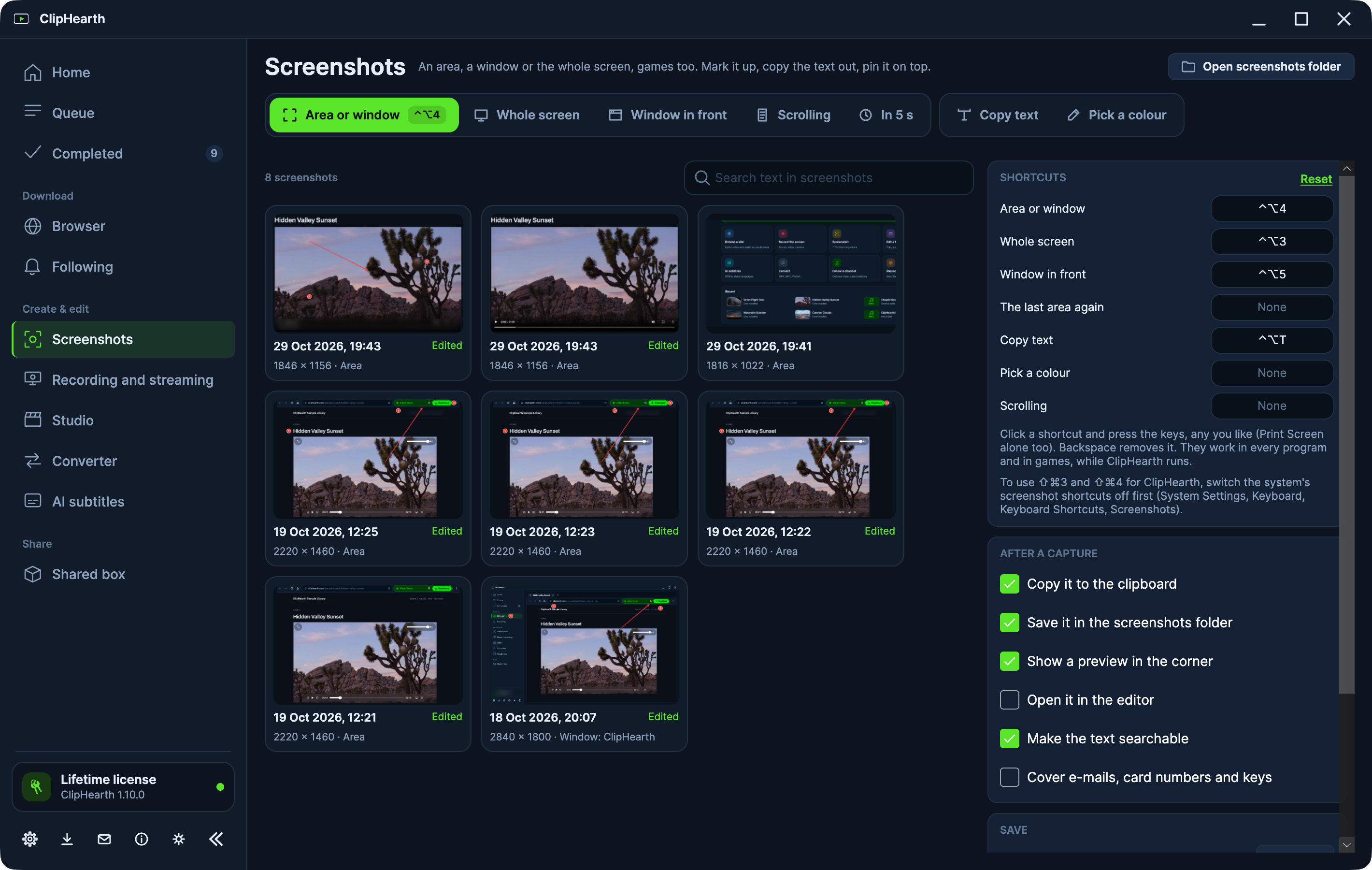
One key, also in games
The bar at the top of Screenshots holds Area or window, then Whole screen, Window in front, Scrolling, and In 5 s, which gives you time to open a menu first; Copy text and Pick a colour sit beside it. Out of the box, Print Screen takes an area or a window on Windows and Linux, and ⌃⌥4 on a Mac. Any shortcut can be a single key such as F5 or Page Down, and they work in every program and in games while ClipHearth runs, also from the tray.
The screen freezes under a thin overlay, so menus and tooltips that would vanish stay on the picture, and a magnifier shows the pixels next to the pointer. In a full-screen game the area shortcut takes the whole screen without the overlay, so the game is not thrown to the desktop.
A long page in one picture
Scrolling takes a page or a window that is longer than the screen: scroll down slowly, and ClipHearth joins everything that scrolled past into one tall picture, with a header that stays in place shown only once.
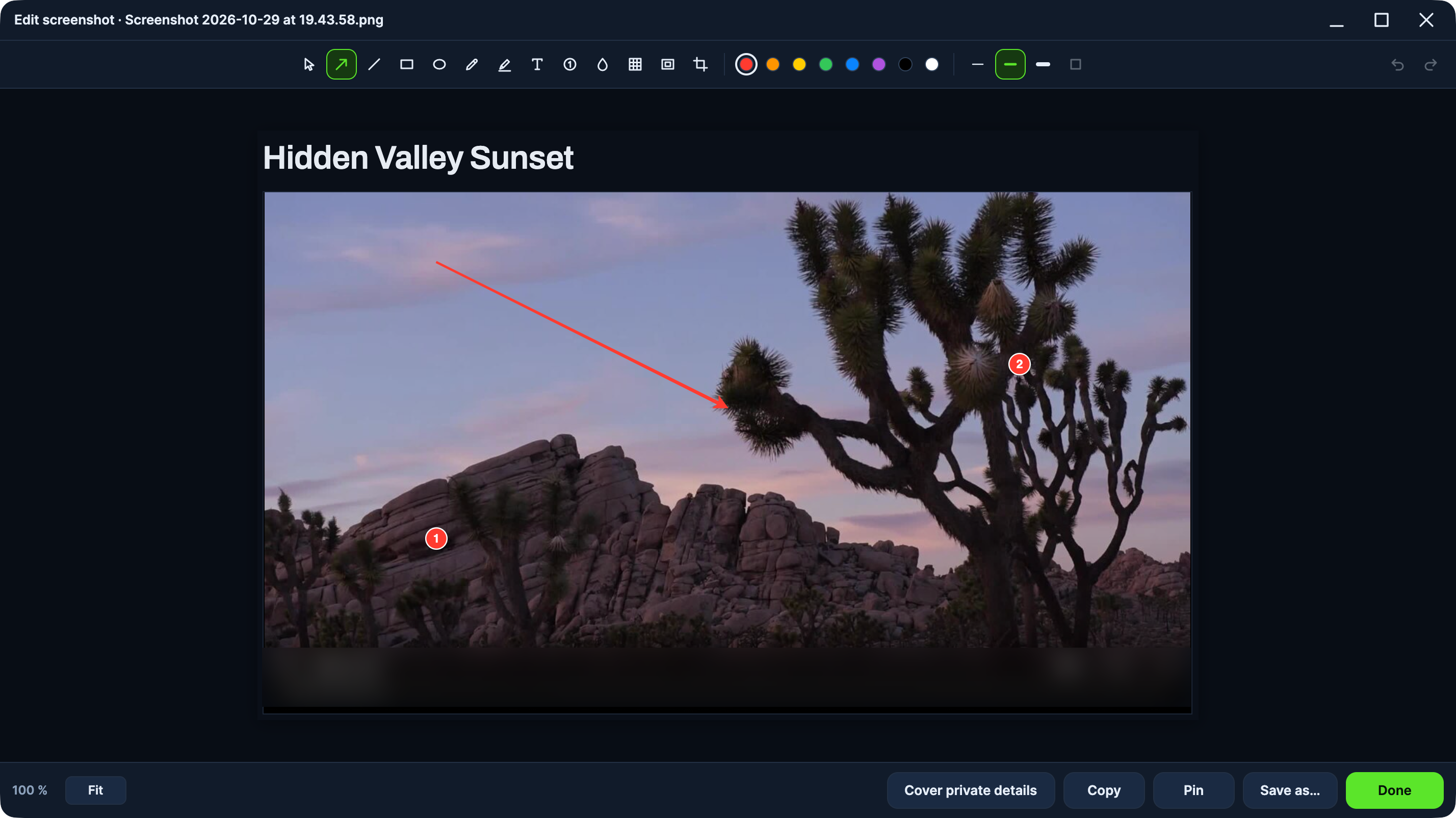
Mark it up
The editor has an arrow, a line, a rectangle, an ellipse, a pen, a highlighter, text, numbered steps, blur, pixelate, a spotlight, and crop. The marks are kept apart from the untouched original, so you can move or delete any of them later.
Cover private details
Cover private details finds e-mails, phone numbers, card numbers, IBANs, and common API keys in a screenshot and pixelates them, with one click or after every capture, before the picture is saved or copied. If it cannot read a capture, it says so and does not copy it. It can miss some, so check before you share.
Copy the text out of anything
Copy text lets you drag over any text on the screen, in a video, a picture, or a locked document, and it goes to the clipboard as text. Pick a colour copies the colour of any pixel. The reading happens on your computer, and nothing is sent anywhere.
After a capture
- Copy it, save it, open it in the editor, or let a small preview appear in the corner.
- Drag the preview straight into a chat, an e-mail, or a folder.
- Pin a capture over every window while you work.
- Send it to your other computer through a shared box.
Find it again
Search text in screenshots finds every capture by the words in it, the program it was taken from, and its file name. Saved screenshots are PNG or JPEG in the ClipHearth Screenshots folder, and a capture that was only copied stays in the list for two weeks.
Questions
Are screenshots free?
Yes, without limit, in the trial and after it. They never count as a trial task.
Is the text read on my computer?
Yes. Copy text, the search, and Cover private details read the picture on your computer, and nothing is sent anywhere.
Can I use Print Screen?
Yes. On Windows and Linux, Print Screen alone takes an area or a window out of the box, and any shortcut can be a single key.
Does it work on Linux with Wayland?
Yes, through a shortcut you add in your desktop's keyboard settings. Scrolling and Pick a colour are not available there, because the desktop asks about every picture.