
Record your screen with your voice and camera
Recording and streaming records a display, a window, an area, or a game, with the computer's sound, your microphone, and your camera, on Windows, macOS, and Linux. Recordings up to 3 minutes are free, also after the trial.
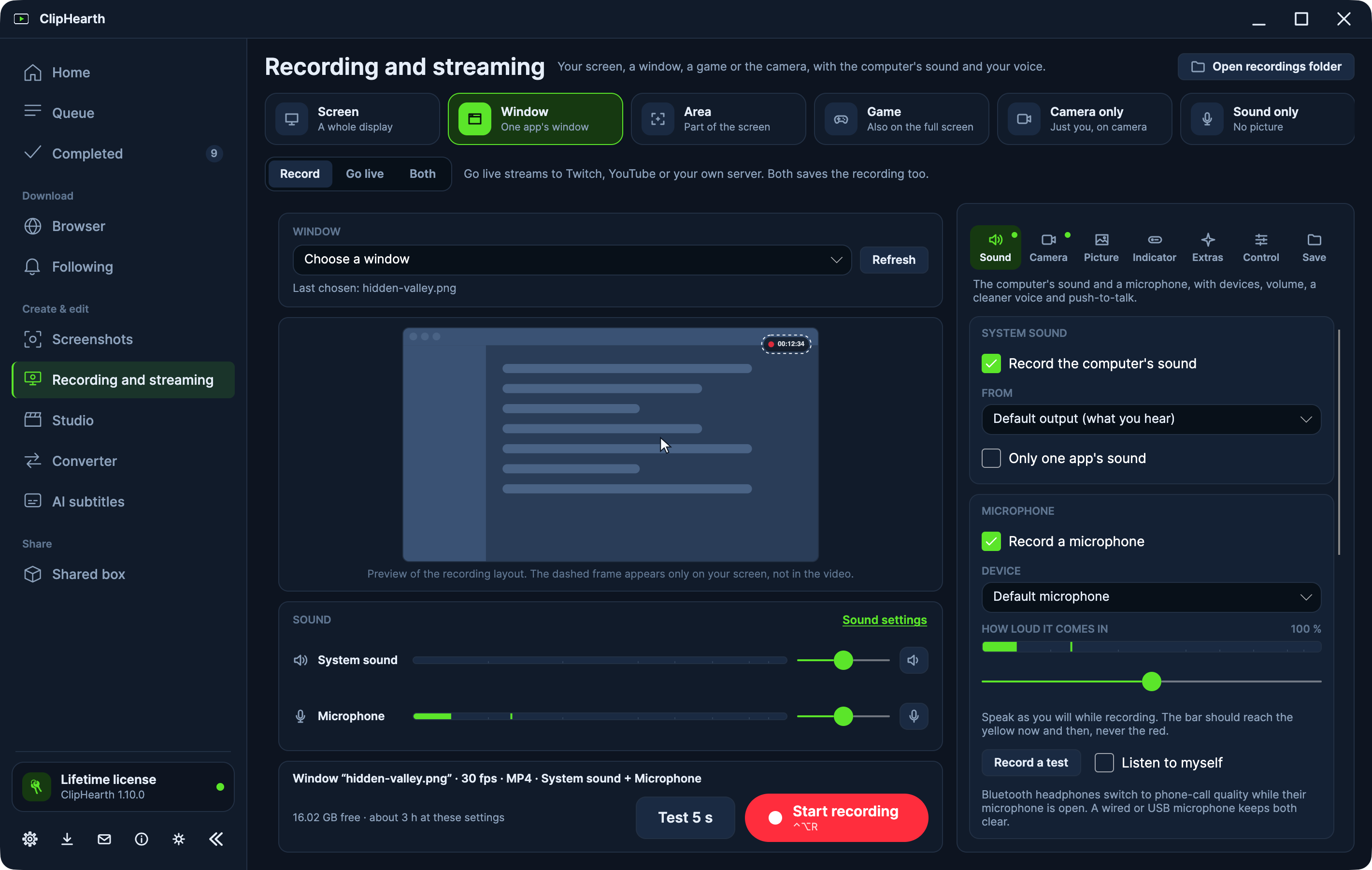
What to record
- Screen: a whole display.
- Window: one app's window.
- Area: part of the screen, free or in 16:9, 9:16, 1:1, or 4:3.
- Game: through the system's own capture, also on the full screen.
- Camera only, or Sound only: a call, a webinar, a radio show.
Keep ClipHearth out of the recording hides the app's own window on Windows and macOS.
Sound and your voice
Record the computer's sound, or only one app's sound, and your microphone. Voice clean-up works as you record: it reduces background noise, removes electrical hum, evens out the loudness, silences the gaps between words, and softens sharp S sounds. The microphone can start muted or be push-to-talk.
Each sound can go on a track of its own, after a mix of both that every player plays, so you can balance them later in the Studio.
Your camera
Put the camera in a corner as a circle or a rectangle, mirrored the way you see yourself. The background behind you can be removed without a green screen or blurred. Recordings keep the camera apart, so its place and its background can be changed in the Studio afterwards.
Show what you click
Highlight clicks, and zoom in where you click. The way of the pointer is kept for the Studio, so a zoom can follow it later. If you switch it on, the keyboard shortcuts you press can be kept and shown as text: it is off by default, works only while recording, keeps only shortcuts and not what you type, and is stored next to the recording on your computer and never sent anywhere.
Before and while you record
- Test 5 s records a short sample and says what is missing, such as a silent microphone or a permission.
- Start on a countdown or at a set time, stop after a set time or before the disk is full, and split into a new file every few minutes.
- Pause and resume, and mark a moment for a chapter, with shortcuts that work in any program, also a single key such as F5.
- Instant replay keeps the last 30 seconds to 5 minutes ready to save until you press the key.
- A small indicator shows that recording runs; only you see it.
When it is done
The recording is finished in the Queue like an export: MP4, MKV, MOV, WebM, or GIF, or MP3, M4A, FLAC, or WAV for sound only, with a watermark, a time code, or split into parts if you like. It lands in Completed, ready to open in the Studio or to get subtitles. A recording that could not be finished is offered again at the next start.
A finished look
From 1.11.0, Draw the pointer larger and smoother records the screen without the system's pointer and draws one afterwards, so the Studio can change its size, smooth its way, and hide it while it rests. In the Studio, Background and frame puts the recording on a gradient, a colour, or your own picture with rounded corners and a shadow, and Zoom in on the clicks adds a zoom for every click.
Go live from the same section
The switch has Record, Go live, and Both. Go live streams the same picture to Twitch, YouTube, Kick, your own server, and more places at once, and Both streams and records together.
On Linux with Wayland
Pick the screen or the window in your desktop's own sharing dialog, and ClipHearth remembers it for the next time. It needs GStreamer with PipeWire, which Ubuntu has out of the box.
Questions
Is screen recording free?
Yes, recordings up to 3 minutes are free without limit, also after the trial. A longer one takes one of the three trial tasks, and when none is left it stops at 3:00 and is saved.
Can it record only one app's sound?
Yes, on Windows 10 version 2004 or later, macOS 13 or later, and Linux with pactl and parec, so the voices of a call or notifications stay out.
Can I record a call or a meeting?
Yes: record the window with the computer's sound and your microphone, or the sound alone. Please only with everyone's consent.
Does it record games?
Yes. Game records through the system's own capture, also on the full screen.
Which systems does it run on?
Windows 10 or later, macOS 12 or later, and Linux with X11 or Wayland.