
Desktop media workbench · Windows 10+ · macOS · Linux
Capture, convert, edit.
One desktop workbench.
For creators, teams, and archivists who need to keep, convert, and reuse media they own or are authorized to use, without switching between several apps.
ClipHearth takes screenshots and records your screen, your microphone, and your camera, or saves the video and sound playing on a page. Then it cuts, captions, converts, and subtitles right on your computer, all in one app.
v1.7.0 (updates to 1.7.1 on first start) · free to try: 3 tasks per device, no card, no account · all builds ↓
For media you own or are authorized to keep. ClipHearth does not circumvent DRM.
- Record
- Screen · window · game · camera · mic · free up to 3 min
- Screenshot
- Area · window · screen · markup · copy text · pin
- Edit
- Cut by text · captions · format · effects · GIF
- Share
- Shared box: texts, pictures and files between your computers, end to end, with the license
- From a page
- Video and sound a page plays · live streams · radio
- Convert
- 11 video · 9 audio formats
- Subtitles
- Optional AI, on your computer · 50 languages
- Follow
- Podcasts · playlists · new episodes on their own
- Platforms
- Windows 10+ · macOS 12+ · Linux
- License
- Lifetime or monthly · 3 free tasks to try
Take the tour. Click around.
A clickable replica of ClipHearth 1.7.1, running right in this page, with the same layout, states, and flow as the desktop app. Download the video from a sample page or record the live radio, then convert it, edit it step by step with Zoom & pan, or add AI subtitles.
What are we making today?
Simulated in your browser: nothing is downloaded, uploaded, or counted against your trial. The real work happens in the desktop app, on your machine.
The real app · screenshots from macOS
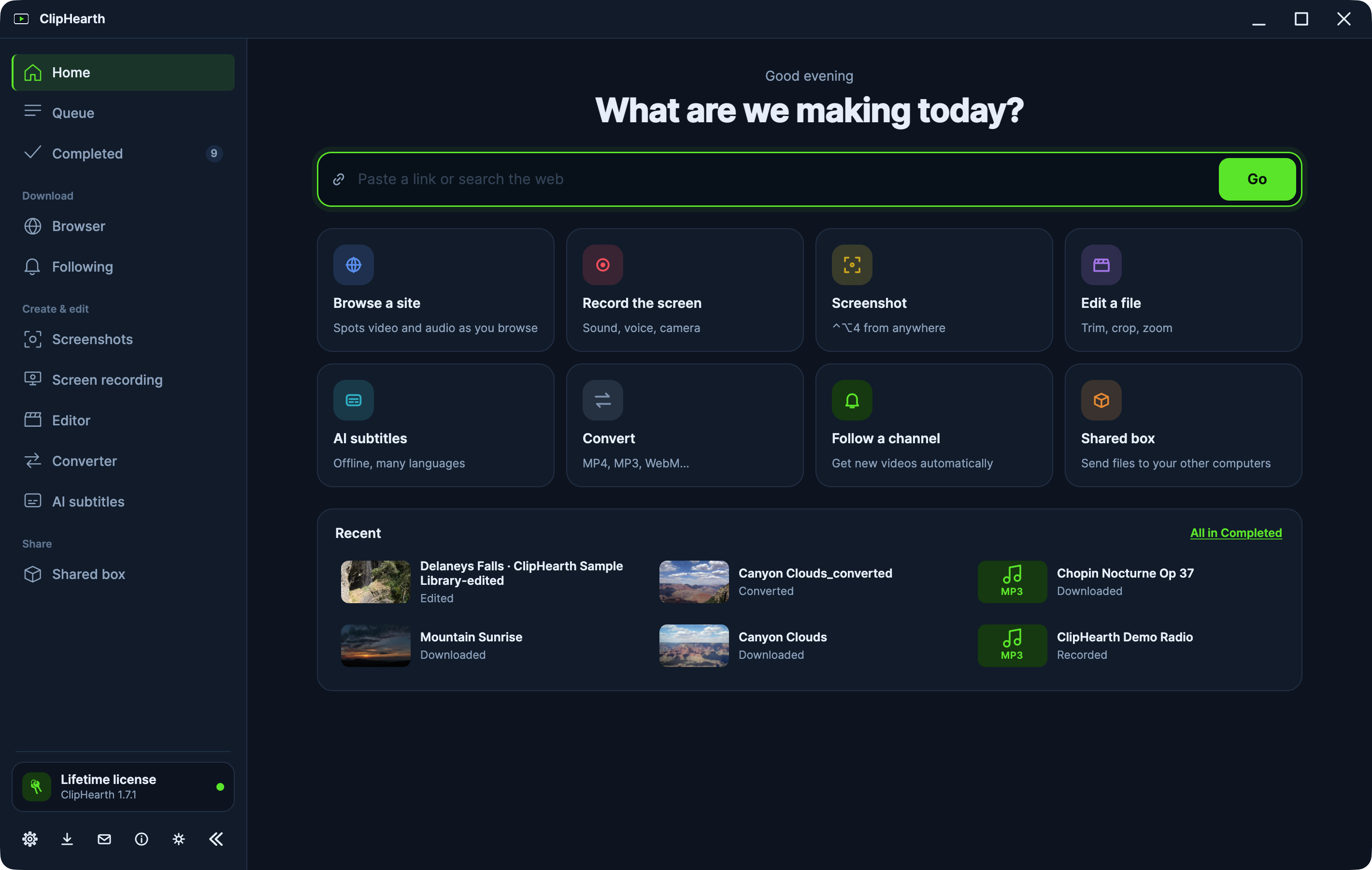
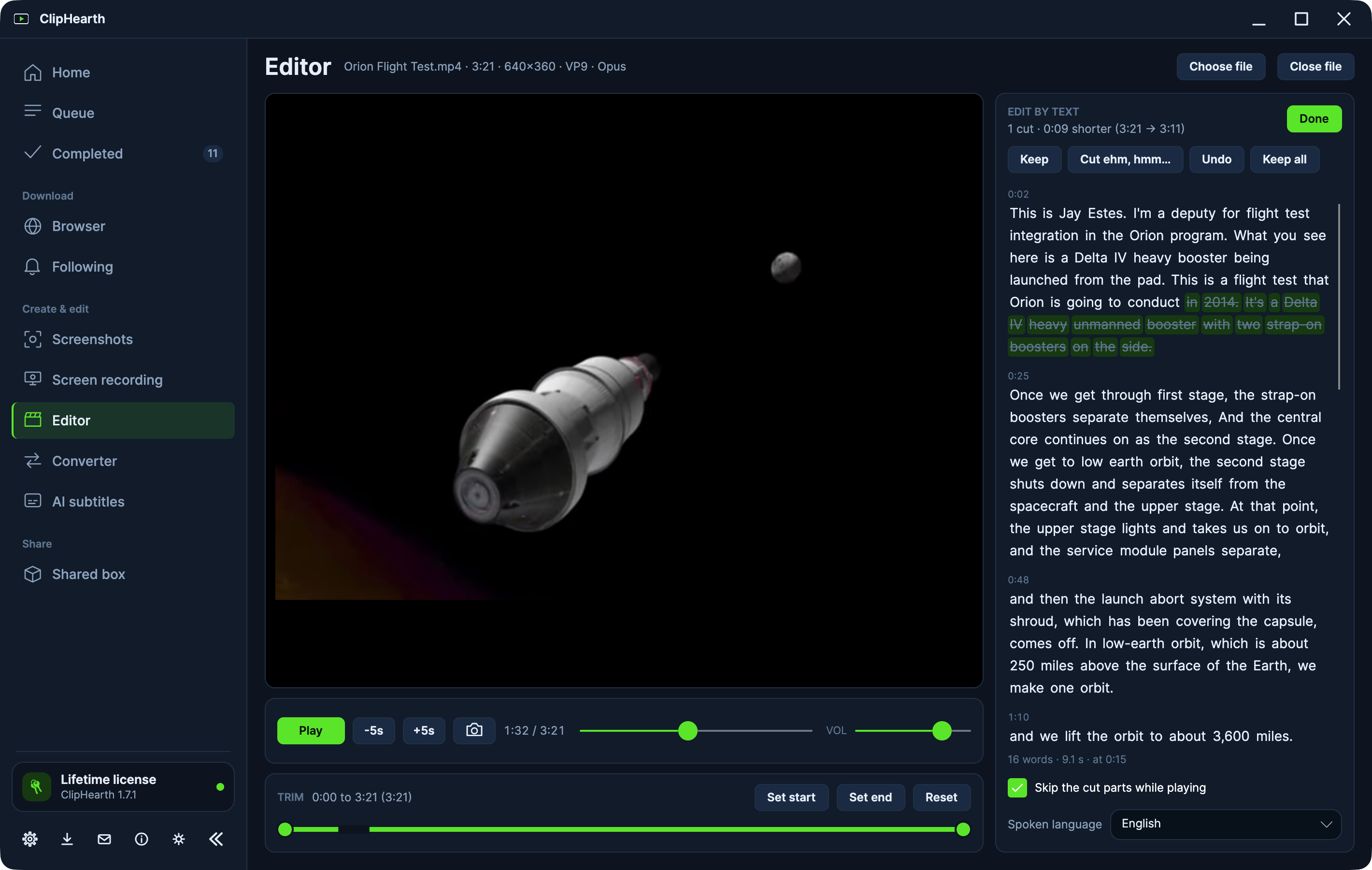
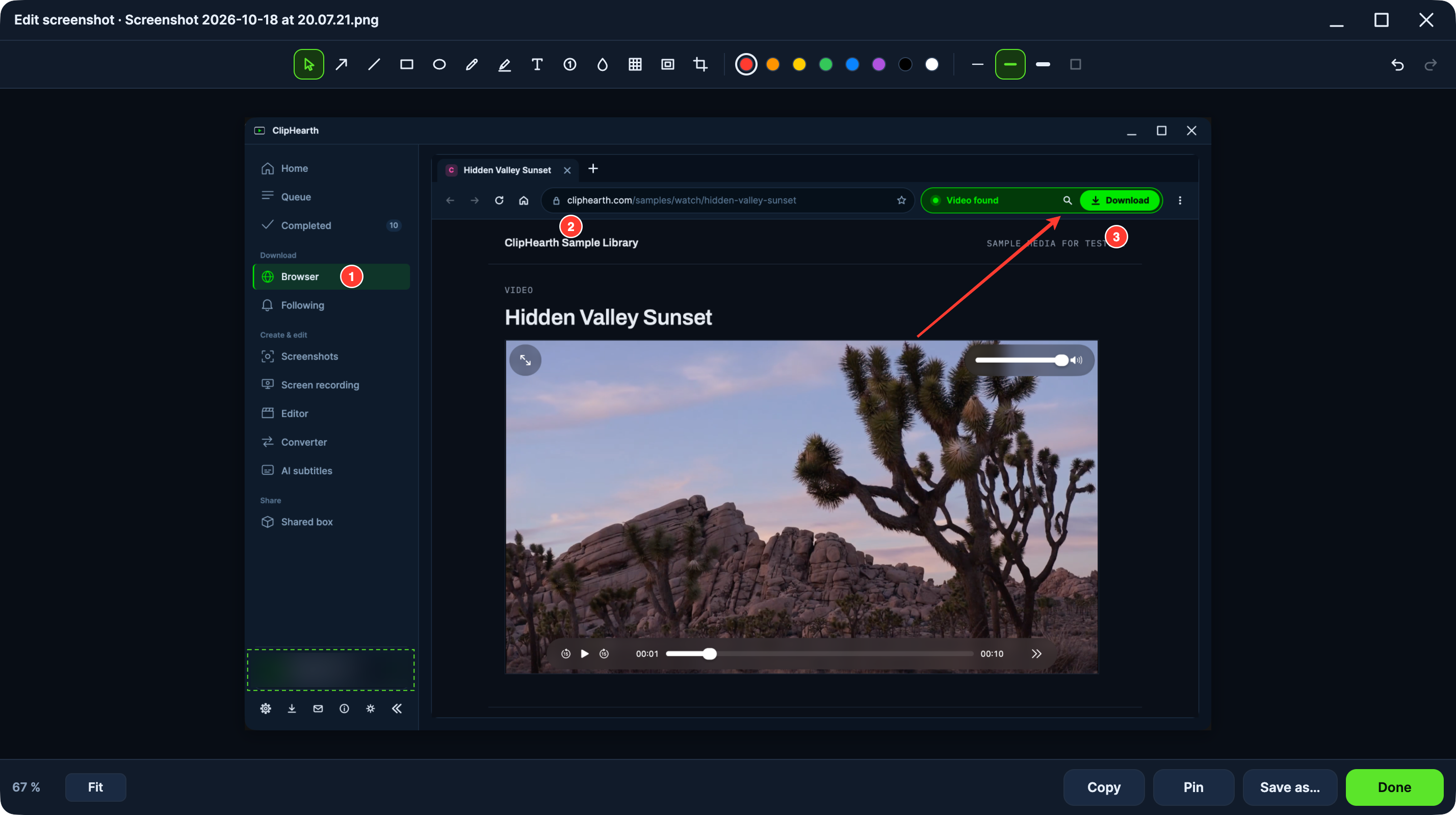
More screenshots, in full size, in the press kit.
Get ClipHearth 1.7.0. Try it free.
Every download runs in trial mode: 3 tasks per device, no card, no account. Screenshots and screen recordings up to 3 minutes stay free for good. Pick a lifetime license or a monthly plan only if you want to keep going. The 1.7.0 installers offer the 1.7.1 update on first start.
Windows
Windows 10 or later
macOS
macOS 12 or later · Apple Silicon or Intel · signed and notarized by Apple
Linux
x64 or arm64 · .deb or tar.gz
What's new in 1.7.02026-10-17
- The computer that created a shared box is its admin, marked with a crown. Only the admin changes the password, takes other computers out, changes how long the box is kept and deletes it. The admin can hand the role to another computer, and anyone can leave.
- When the admin changes the password, the other computers can stay, or all of them or the ones you choose leave the box. The box shows a line for everyone when the password changes, a computer is taken out or another computer becomes the admin.
- The bar of a shared box shows how this computer reaches each of the others, over the local network, the internet or the relay server, and how much of this month's relay allowance is used.
- Locking a shared box closes it at once, and a locked box opens only with its password, from its card or its padlock. Files you put in a box with a lock are kept in it encrypted while the files themselves stay where they are, so a box on one computer works as a safe.
- On Linux with Wayland, Screen recording works with a preview. The system asks which screen or window to share, and you choose whether the recording indicator stays on screen.
Before you install
- FFmpeg and the media engine ship inside every build.
- The Windows installer installs ClipHearth for your account only, so it never asks for an administrator; it adds the Microsoft WebView2 runtime if it's missing, so keep the connection on during setup. If an earlier version was installed for everyone on the computer, Windows asks once to remove it.
- Debian, Ubuntu, Mint:
sudo apt install ./cliphearth_1.7.0_amd64.debinstalls what the app needs and adds the ClipHearth repository, so updates arrive through your system's own software updates. - Other Linux: unpack the archive and run
./install.sh; it lists the packages your distribution still needs. Full install guide - macOS builds are signed with a Developer ID and notarized by Apple, so they open straight away. Not sure which Mac you have? Apple menu → About This Mac; "Apple M…" means Apple Silicon.
- Free browser extension for Chrome, Edge, and Firefox: send the page you are on to ClipHearth in one click. Get the extension
- Checksums for every file: SHA256SUMS.txt
Windows installers are signed through Microsoft Trusted Signing, macOS builds with an Apple Developer ID and notarized by Apple, and the Debian package comes from our signed repository. Updates install only when they carry our signature, and every file has a published checksum.
The app carries no analytics and no telemetry. It talks to our servers only to confirm your license, to ask whether an update exists and, when you pick an AI model, to download it once. Diagnostics logging stays off until support asks for it.
Pages you open, files you save and everything you convert stay on your computer. The built-in browser blocks the ads and trackers around a page before they load and hides cookie prompts.
No toolbars, no bundled offers, no ads inside the app. Conversions and edits are always written as a new file, so your originals stay as they were.
How ClipHearth works
- 01
Capture
Take a screenshot of an area, a window, or the whole screen with one key, or record the screen with your microphone and your camera in a corner. In the built-in browser, the detector finds the video or sound a page plays, live streams and radio included, and saves it in the quality you pick.
screenshot · recording · video found - 02
Edit
Cut a video by editing what is said in it, take out the pauses and every ehm, add word-by-word captions, make a vertical clip, or lay music under speech. Mark up a screenshot with arrows, numbered steps, and blur. Every export is a new file, so the original stays untouched.
exported as new file - 03
Convert
Turn anything into one of 11 video and 9 audio formats, in batches or under a file size you set, lossless and near instant when only the container changes. Add subtitles from speech or translate them, on your computer and only if you want to.
conversion complete - 04
Share
Put the result in a shared box and it shows up on your other computer, Windows, macOS, or Linux, or on a friend's. It goes directly between the computers, or through a relay server when they cannot reach each other, encrypted end to end and with no account. Every computer in the box needs a license.
in the box
Built like an instrument, not a widget.
Every capability below ships in the app today, and most of them are in the interactive demo above. Nothing on this list is aspirational.
- Screen recording
- Record a display, a window, an area of the screen, or a game, with the computer's sound, your microphone, and your camera in a corner, with the background behind you removed without a green screen if you like. Your voice can be cleaned up as it is recorded (background noise, hum, loudness, sharp S sounds), the microphone can be push-to-talk, and each sound can go on a track of its own for mixing later. Pause and resume, mark a moment for a chapter, start on a countdown or at a set time, and keep an instant replay of the last minutes until you press the key. Test 5 s records a short sample first and says what is wrong before you record for an hour. The recording is finished in the Queue like an export, with a watermark, a time code, highlighted clicks, or split into parts, and lands in Completed ready for the Editor or AI subtitles. On Linux the screen needs an Xorg session; on Wayland it records the computer's sound only for now.
- Screenshots
- An area, a window, or the whole screen with one key, games too. Mark it up with arrows, boxes, text, numbered steps, blur, a spotlight, or cropping, copy the text out of anything on the screen, pick a colour, pin a capture over every window, or drag the thumbnail straight into a chat. Find any capture later by the words in it. Everything happens on your computer, and screenshots never count as a trial task.
- Editor
- Six tabs: Cut, Format, Captions, Effects, Sound, and Export. Cut by text: ClipHearth writes down what is said and you strike out words, sentences, or every ehm and hmm; cut out the pauses, trim, and join clips. Format makes the video 9:16, 1:1, 4:5, or 16:9 in one click. Captions in the style of social networks with the spoken word lit up, a logo or text watermark, and a time code in the corner, all placed on the preview. Effects: Zoom & pan between keyframes, colour, clean-up, a steadier picture, speed from 0.25× to 4×, and fades. Sound: music or a voice-over under the picture or in its place, or speak your own voice-over over the video as it plays, with the original sound stepping back under it; loudness and noise too. Export one file, split it into parts, or apply the same edits to more files; animated GIFs and PNG snapshots too. Cut by text and captions need a license.
- Shared box
- Send texts, pictures, screenshots, recordings, and any file between your computers, or to someone you share a box with. It goes straight from one computer to the other when they can reach each other, otherwise through a relay server, encrypted end to end either way: neither the relay nor the ClipHearth server can read what you send. Name the box, choose a password, join it on the other computer, then paste, drop a file, or press Send. Every computer in a box needs a license, up to 3 boxes on each computer. The relay server carries up to 20 GB a month per license and can be busy at times; a direct connection, such as the same network, has no limit and is the best way for big files. The computer that created a box is its admin, marked with a crown: only it changes the password, takes computers out, or hands the role on. One button in the box's bar opens a map of how this computer reaches each of the others, over the local network, the internet, or the relay server, next to how much of the month's relay allowance is used. Texts and pictures come in by themselves; files wait until you click Get, after ClipHearth checks that the disk has room. A box password has 8 to 64 characters, and ClipHearth says whether a new one is recommended. On a computer other people use, lock the box with a password of its own: what it keeps there is encrypted and opens only with the password, and files you put in yourself are copied in encrypted while the originals stay where they are.
- Converter
- Batch conversion with the same settings applied across files. Pick Small file, Balanced, or High quality, or go manual with codec, CRF, bitrate, fps, and resolution, and save your own named presets. Fit into a file size: tell it the limit (10, 25, 50 MB, or any size) and the file comes out no bigger, encoded twice to get there. Before a batch starts, it shows every file: what is copied and what is re-encoded, the output name, a size estimate, and which files it will skip.
- AI subtitles
- Optional, and included in the license. ClipHearth writes subtitles from what is said in a video, in 50 spoken languages recognised on their own, and translates them into 16 languages. Speech recognition and translation run on your computer, and no AI model is downloaded or started until you choose one. Add subtitles while you download or to any video you already have, as .srt files, as tracks inside the video, or burned into the picture.
- Stream detector
- A real embedded browser with tabs, favorites, history, and an address bar that suggests pages from the first letter you type. A detector box next to the tabs shows what was found and what is being recorded. It scores every media request, filters ad streams, and picks the highest-quality variant (HLS, DASH, or direct files) before you click Download.
- Live recording
- When a live stream is playing, Download becomes Record Live. Capture in real time and stop whenever you like. Everything up to that point is saved.
- Sound & radio
- Sound is a capability of its own. Pages that play MP3, AAC, FLAC, or OGG files, sound-only HLS and DASH streams, and music or podcast sites show Audio found with a Download audio button, and the file is saved in its original format, without re-encoding. A live audio stream shows Live audio found; Record audio keeps recording as MP3, AAC, or OGG until you click Stop and save.
- Playlists & sections
- Queue an entire playlist or channel in one action, up to 500 entries. Or download just a time range with the built-in section picker. Add subtitles in the quality picker saves the site's own subtitles with the video, in the free trial too.
- Following
- Follow a podcast, a playlist, or your own channel and ClipHearth looks for new episodes every few hours while it runs, and saves them into a folder named after it. Press Follow in a playlist's window or on the bar of a copied link, or paste the address in the Following section. With a license new videos come in by themselves. In the free trial they wait for a click, and each download is one of the 3 free tasks. Before you follow a channel, a preview shows what it already has.
- Ad & tracker blocking
- The built-in browser refuses the ads and trackers a page loads around its content, using the public EasyList and EasyPrivacy filter lists plus ClipHearth's own rules, and hides the empty slots they leave. A site's own video player is left alone, so playback behaves the way the site intends. Cookie consent prompts are hidden too; while one stays unanswered, sites set only their technical cookies. All of it is on by default and can be switched off in Settings. Sign-in providers and human-verification checks are never blocked.
- Performance
- FFmpeg and the media engine ship inside the app: no codec packs, no separate installs. Conversions, Editor exports, and burned-in subtitles use the graphics card on Windows, macOS, and Linux when it can, and fall back to the processor on their own; the job queue runs downloads in parallel.
- Trust & updates
- Automatic updates install only when they carry the signature of ClipHearth's publisher, checked before anything is written. One window shows the whole update from download to Start, an update replaces only ClipHearth's own files, and a full disk is reported before anything changes. On Windows, ClipHearth installs for your account only, so neither installing nor updating asks for an administrator. On Debian, Ubuntu, and Mint, updates arrive through the system's own software service from the signed ClipHearth repository. Closing the window keeps ClipHearth in the tray so shortcuts, Following, and the queue keep working; Settings turns off starting with your computer. Your license is confirmed with our activation server while you work; if it can't be reached, a lifetime license keeps going for up to 40 tasks or 30 days and a subscription for up to 15 tasks or 7 days. Diagnostics logging is there when support needs it, and off by default.
Pricing
Lifetime license
€ 39one-time · no expiry
- ClipHearth for Windows, macOS, and Linux
- Browser capture, Converter, Editor, Following, and shared boxes, plus optional AI subtitles
- Signed automatic updates
- Up to 30 days offline between license checks
- Key delivered instantly, on screen and by e-mail
- 1 computer, add more for € 12 each, up to 10
14-day money-back guarantee · Refund policy
Monthly subscription
€ 9per month · cancel any time
- ClipHearth for Windows, macOS, and Linux
- Browser capture, Converter, Editor, Following, and shared boxes, plus optional AI subtitles
- Signed automatic updates
- Up to 7 days offline between license checks
- Renews automatically through Stripe
- 1 computer
Cancel any time from your receipt · Refund policy
Frequently asked questions
Step-by-step guides live in Help: installing, fixing a failed download, activating a licence.
Is downloading with ClipHearth legal?
ClipHearth is for media you own, created yourself, are authorized to use, or may lawfully process. That's the agreement you accept on first run. The app does not circumvent DRM, and protected content is not supported.
Can I try it before buying?
Yes. The app runs in trial mode with 3 free tasks per device, enough to test a download, a conversion, and an edit. Screenshots, screen recordings up to 3 minutes, and Test 5 s never count as a task. A longer recording takes one task the moment it passes 3 minutes, a download from Following is one task, and a shared box needs a license on every computer. When the third one is used up, the next click opens an offer to buy a license or to enter a key you already have, and the task carries on the moment the key is activated.
Which platforms are supported?
Windows 10 and later (64-bit and 32-bit installers), macOS 12 and later (Apple Silicon and Intel), and Linux on x64 and arm64: a .deb for Debian, Ubuntu, and Mint that updates through apt, and a tar.gz with an install script for other distributions. FFmpeg and the media engine are bundled in every build. AI subtitles need a 64-bit system; on x64 the processor needs AVX2 (Intel from 2013, AMD from 2015), and the 32-bit Windows build does not include them.
How does the license work?
Pick a lifetime license (one payment, no expiry, 14-day money-back guarantee) or a monthly subscription (cancel any time). Your key shows up on the confirmation page and by e-mail right after checkout and activates the app on one computer. The app confirms the license with our server while you use it; without a connection a lifetime license keeps working for up to 30 days (40 tasks) and a subscription for up to 7 days (15 tasks). A subscription keeps working until the paid-through date, even after you cancel.
Can I use ClipHearth on more than one computer?
Yes, with a lifetime license. A license covers one computer, and you can add more to the same license for € 12 each, up to 10 computers in total: open cliphearth.com/add-computers with your key. On each extra computer you enter the same key, and the computers can be used by your household or a small team. Every computer in a shared box needs a license: each one is one of your license's computers or has its own license. Extra computers can be refunded within 14 days, as the Refund Policy explains. A monthly subscription covers one computer.
What if I reinstall ClipHearth or change computer?
Reinstalling ClipHearth, or losing its license file, keeps your license: the app recognises the computer and gets the license back on its own, without the key. A fresh install of the operating system, a different user account or a new computer counts as a new computer, so the old one has to be released first - write to info@cliphearth.com from the address you bought with and we will do it.
Can I switch from monthly to lifetime?
Yes, from the app: License → Upgrade to lifetime, or open cliphearth.com/upgrade and paste your key. You pay the normal lifetime price once. The lifetime license starts when the period you have already paid for ends. Those days are not refunded, and nothing is charged again after that. We cancel the monthly charge for you and your activation key stays the same. Change your mind within 14 days? The refund deactivates the lifetime licence, and we give you back the subscription days you had not used yet.
Who is the seller, and are taxes included?
Payments run through Stripe, and Stripe's Link is the merchant of record: VAT or sales tax is handled at checkout, receipts and invoices come from Link, and refund or payment questions go through Link support or info@cliphearth.com. Prices are shown in EUR with tax included; Stripe converts them to your local currency at checkout.
What formats can it produce?
Video: MP4, MKV, MOV, WebM, AVI, M4V, WMV, FLV, MPEG, 3GP, and OGV. Audio: MP3, WAV, M4A/AAC, FLAC, OGG Vorbis, Opus, WMA, AIFF, and AC-3. The Editor can also export animated GIFs and save PNG frame snapshots.
Can I save just the sound?
Yes. When a page plays audio on its own (a music or podcast page, a sound-only stream, or a plain MP3, AAC, FLAC, or OGG file), ClipHearth shows Audio found and Download audio, and saves the file in its original format without re-encoding. A live audio stream, such as an internet radio station you are authorized to record, shows Live audio found; Record audio keeps going until you click Stop and save. Pulling the soundtrack out of a video still uses the audio format from Settings.
Do AI subtitles send my video or its sound anywhere?
No. Speech recognition and translation run on your computer. The only thing ClipHearth fetches is the model you choose, once, from our download address models.cliphearth.com (served through Cloudflare), and that request carries no device id, license key, or cookies. AI subtitles need a license; subtitles a video or a page already has work in the free trial too. In the free trial, Settings already rates each AI model for your computer, so you can see how it will run before you buy. Like any AI output they can contain mistakes, so check them before you rely on them or publish them.
Do I have to use AI?
No. AI subtitles are part of the license at no extra cost, and using them is up to you. ClipHearth downloads no AI model on its own, new downloads get no subtitles unless you switch that on, and speech recognition runs only when you start it. Every other tool works exactly the same without it.
Does editing overwrite my files?
Never. Every edit and conversion is exported as a new file, and the original stays untouched. The one change to a file you already have is one you choose yourself: AI subtitles can add a subtitle track into the video, without re-encoding the picture or the sound, and swaps the file only after checking the new copy. Pick the .srt file or burning in, and the video stays exactly as it was.
Questions before you buy?
Ask about licensing, platform support, or anything the FAQ didn't cover. Already using ClipHearth? Problems and ideas for new features are welcome too; Contact us in the app's sidebar attaches your app version for you. Replies come from a human.